

Style Guide
Dette indhold er ikke tilgængeligt i dit sprog endnu.
Translate in CrowdinWith a style guide, you can create, store, and manage all your project’s formatting and tone rules in one place. It keeps voice, style, and terminology consistent across translations, so translators know exactly how your brand should sound in different languages.
Style guides are a native resource, at the same level as Translation Memory (TM) and Glossary. They give human translators a clear reference while they translate, and provide the base instructions for Crowdin AI features like AI Auto-Translation, AI Assistant, and AI QA Checks.
You can create style guides by writing them from scratch, starting from a ready-made template, or uploading existing MD, PDF, DOCX, or XLSX files. You can then assign them to the relevant projects and target languages.
To create a style guide, follow these steps:
- Open your organization’s Workspace and select Style Guides on the left sidebar.
- At the bottom right, click Create.
- In the left panel of the appeared dialog, configure the following settings:
- Name: Name your style guide.
- Projects: Select All in Workspace (All in group for style guides in a group) or Selected to assign the style guide to specific projects.
- Languages: (Optional) Restrict the style guide to specific target languages. If left empty, it applies to all languages in the assigned projects.
- Move to the right side of the dialog and write your style guide content in the built-in Markdown editor. You can also use one of the following options:
- Use template: Fill the editor with a ready-made Markdown template covering brand foundations, voice and tone, mechanics and localization, and inclusivity, and replace the placeholders with your own rules.
- Upload file: Upload an existing
.md,.pdf,.docx, or.xlsxfile. If you upload a Markdown file, its content appears in the built-in editor.
- Click Create.
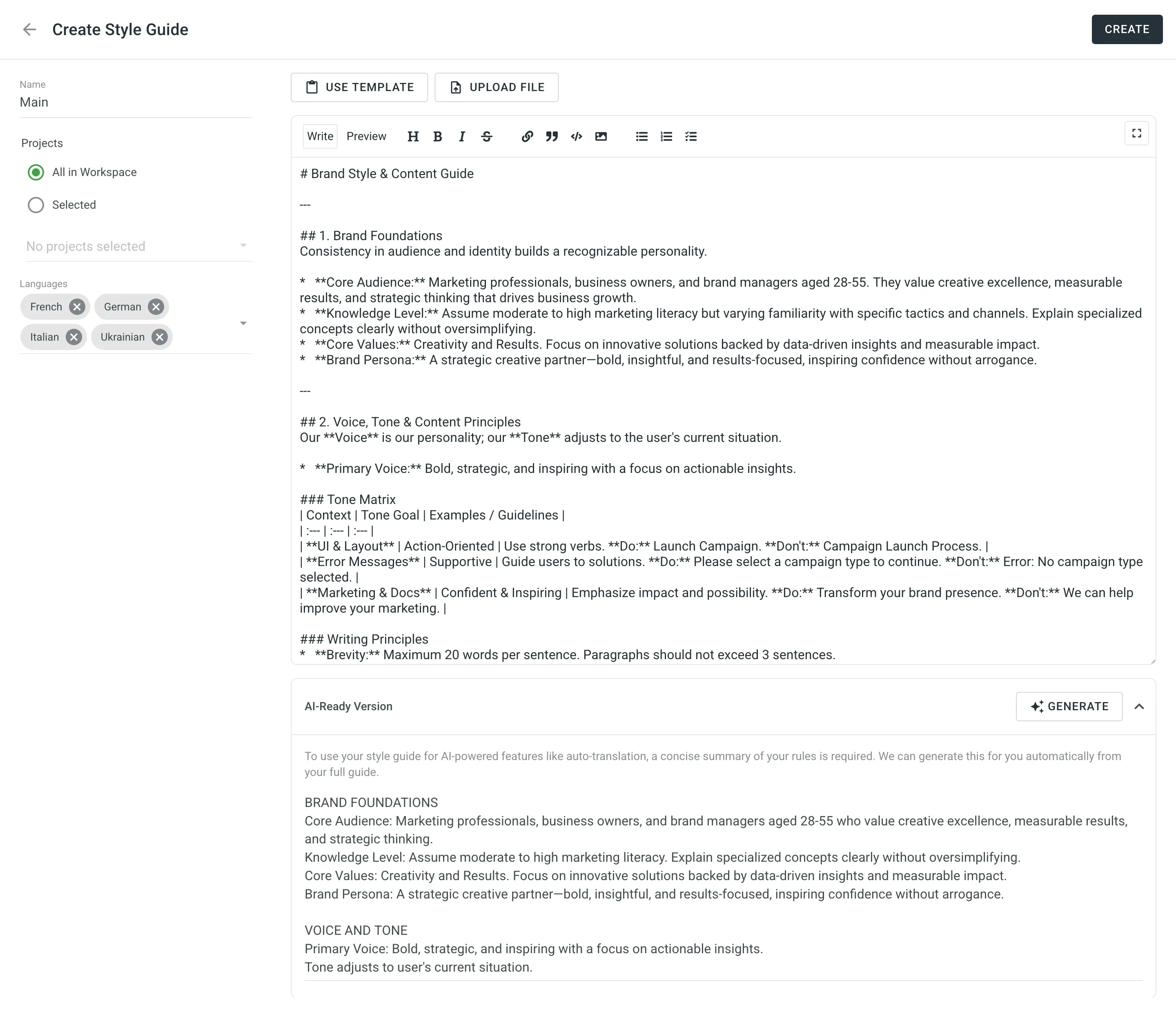
To use your style guide with AI-powered features (like auto-translation or the AI Assistant), the AI requires a concise summary of your rules to include in its prompts. You manage this summary in the AI-Ready Version section of your style guide.
When you create a style guide, Crowdin Enterprise generates the AI-Ready Version from your content automatically. You can also write the summary manually or click Generate to have the AI summarize the full guide again.
Crowdin Enterprise tracks whether your AI instructions are up-to-date with your current style guide content. You can view this status in the AI Version column on the Style Guides page:
- None: The style guide does not have an AI-Ready Version and will not be passed to the AI in prompts.
- Ready: The AI-Ready Version is fully up-to-date with the current style guide content.
- Outdated: The style guide content was modified, but the AI-Ready Version was not regenerated.
You can manage your style guides directly from the Style Guides page on your Workspace home page. This includes searching, filtering, editing, downloading, and deleting them.
Searching, Filtering, and Sorting Style Guides
Section titled “Searching, Filtering, and Sorting Style Guides”By default, all style guides are displayed on the Style Guides page. The table displays the style guide’s Name, AI Version, assigned Projects, Languages, Owner, and Created date.
To find a specific style guide, use the Search field. To filter the list of style guides, click Filter and use the available options:
- Projects: Filter by assigned projects (All or a specific project).
- Languages: Filter by assigned languages (All or a specific language).
- Owner: Filter by the user who created the style guide.
- Created: Filter by creation date (All or Custom Range).
To sort style guides, click the Name column header once to sort in ascending order and click again to sort in descending order.
To choose which columns to display, click .
To edit a style guide, follow these steps:
- Open your organization’s Workspace and select Style Guides on the left sidebar.
- Click next to the needed style guide and select Edit.
- Modify the style guide as needed and click Save to save changes.
When editing a style guide, you’ll find the Style guide metadata section on the left panel. It provides an audit trail of who created or last updated the style guide and when. The section contains the following read-only details:
- Created by: The user who created the style guide.
- Created: The date and time the style guide was created.
- Modified by: The user who last modified the style guide.
- Last modified: The date and time the style guide was last modified.
You can download your style guides for offline reference and reuse them elsewhere.
To download a style guide, follow these steps:
- Open your organization’s Workspace and select Style Guides on the left sidebar.
- Click next to the needed style guide and select Edit. Alternatively, double-click the needed style guide.
- Click Download in the editor toolbar.
To delete style guides, follow these steps:
- Open your organization’s Workspace and select Style Guides on the left sidebar.
- Delete the style guides using one of the following methods:
- Single style guide: Click next to the style guide and select Delete.
- Multiple style guides: Select the checkboxes next to the style guides you want to delete, or select the top checkbox to delete all, then click at the top of the list.
- Confirm the deletion in the confirmation dialog.
Once assigned to a project, style guides become visible to project members in the Editor, so your team can preview or download formatting rules, tone, and brand guidelines without interrupting their workflow.
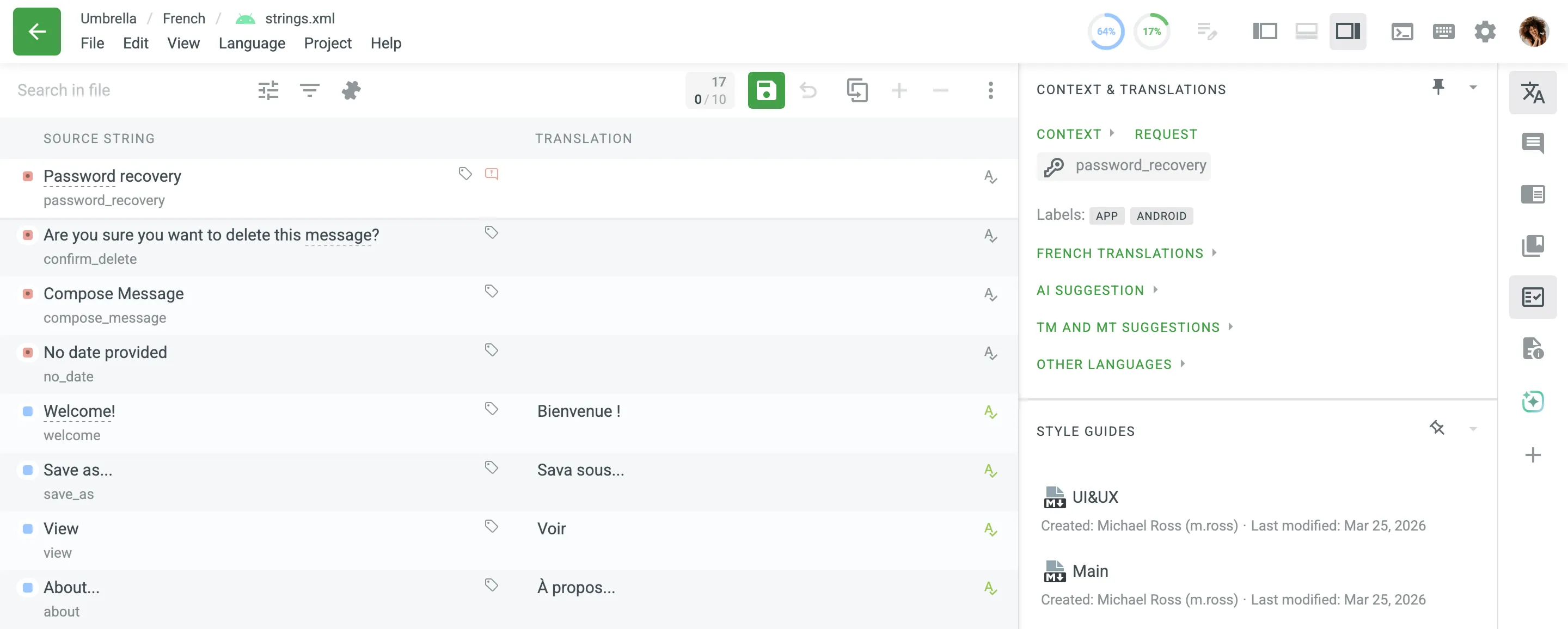
Read more about Style Guides in the Editor.
When the AI-powered QA check is enabled in your project, it automatically incorporates all assigned style guides into its evaluation prompt. The AI checks that each submitted translation follows the tone, voice, and style rules defined in your style guides.
You don’t need to manually select a style guide in your AI prompt settings. Crowdin Enterprise evaluates translations against all the style guides assigned to the project.
Read more about Setting Up AI QA Check.
You can also create, manage, and delete style guides programmatically using the Crowdin Enterprise API.
Can I share style guides with vendors in Crowdin Enterprise?
Yes. When configuring your project workflow, you can enable the Share style guides with Vendor option in the Translation by Vendor or Proofreading by Vendor steps. The vendor then has access to your brand’s tone and style guidelines and can keep translations consistent with them.
Read more about configuring vendor workflow steps.